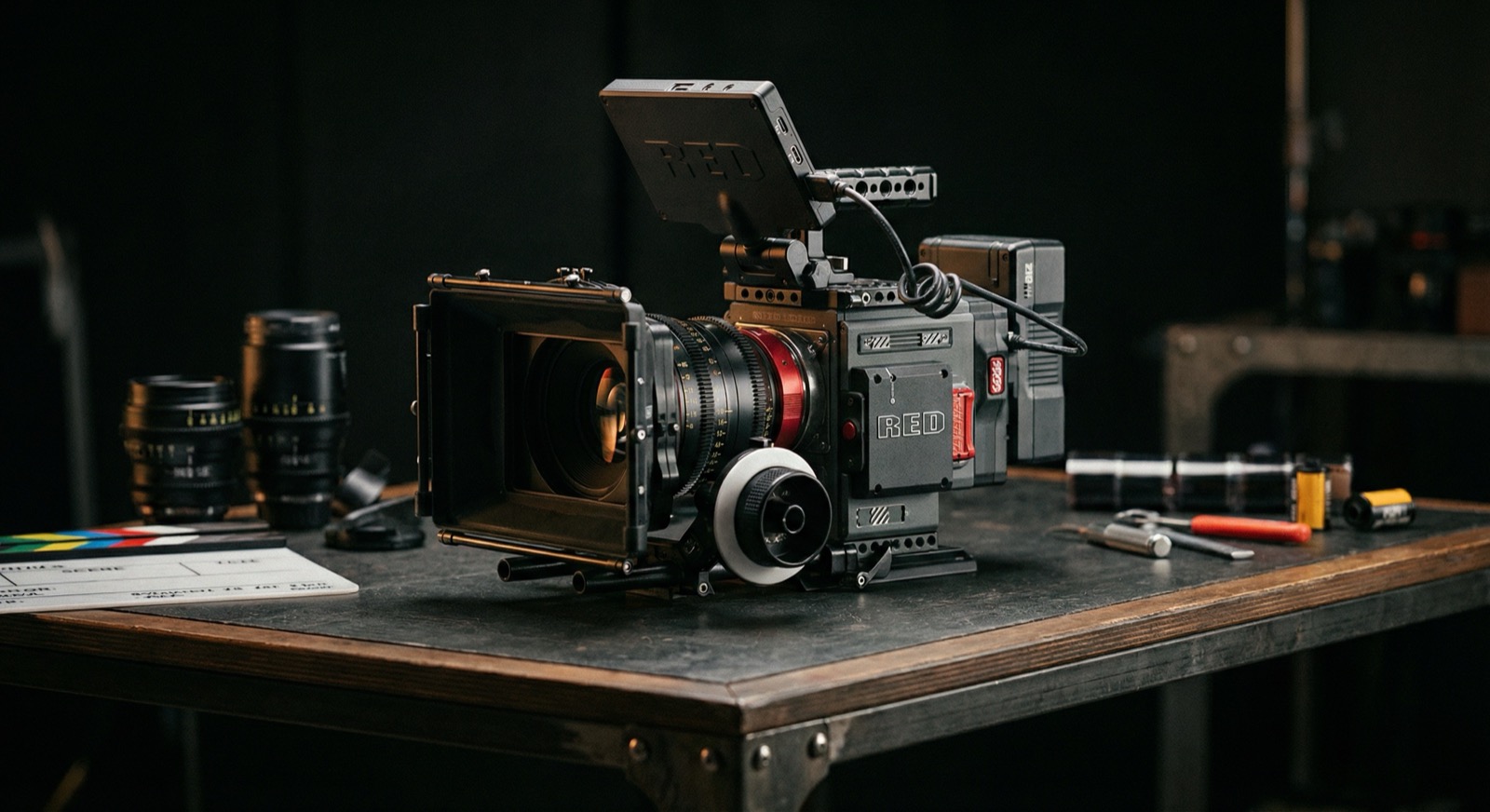
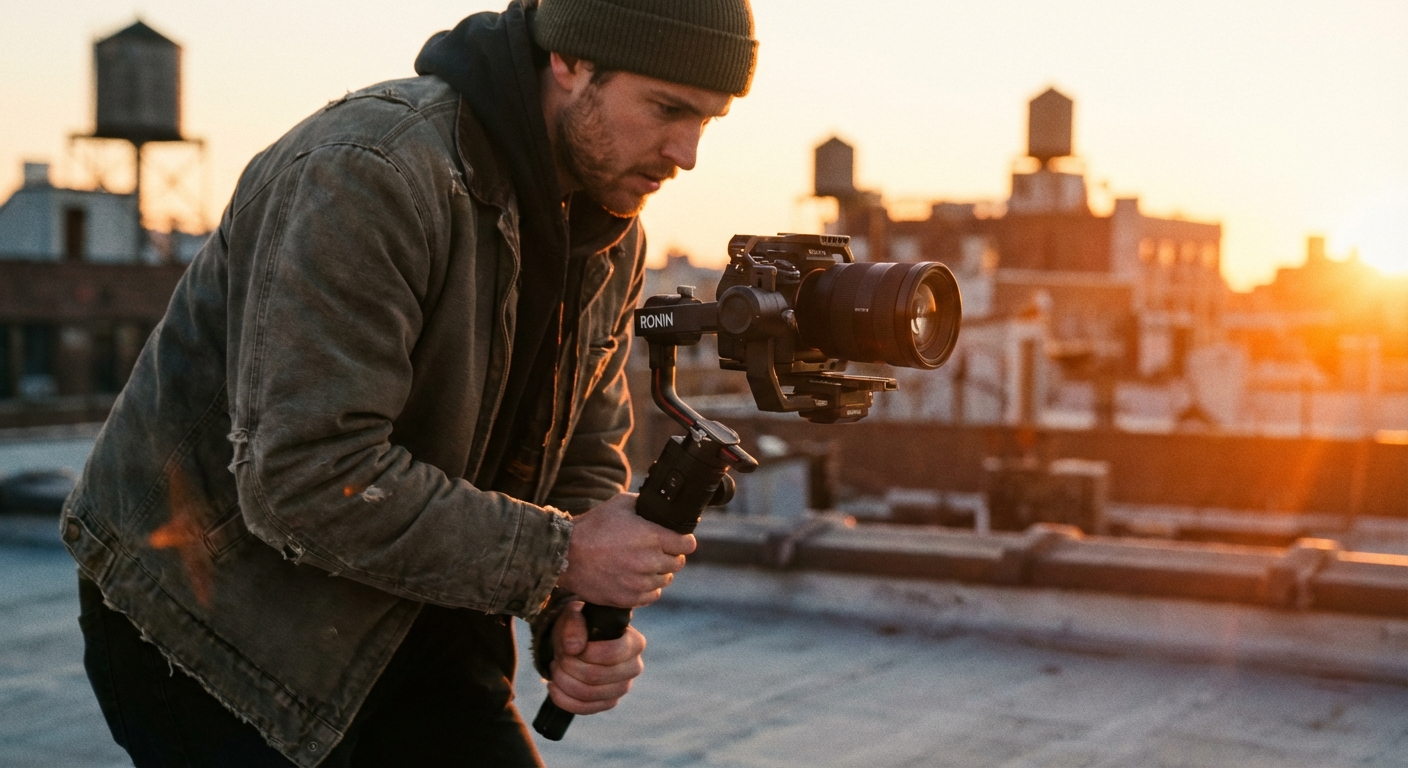
Filmmakers love the Canon R5 C because it’s a cinema camera and a stills workhorse living inside the same chassis. The hybrid brain can be a serious advantage on set—if you configure it for speed. These ten workflow moves keep productions nimble without sacrificing image quality.
1. Pre-program the hybrid switch
Map custom modes on both sides of the Photo/Cine switch so the camera wakes up pre-configured. For example, set C1 (Photo) to handheld BTS stills and C1 (Video) to your go-to 4K XF-AVC profile. Now the toggle isn’t just changing operating systems—it’s jumping you directly into the right codec, aspect ratio, and monitoring layout.
2. Build your Dual Base ISO cheat sheet
The R5 C’s Dual Gain Output sensor behaves best when you stay on its native ISO shelves (e.g., 800/3200 for Canon Log 3). Create a laminated or phone-friendly ISO chart for every gamma curve you use so assistants can jump to the clean base immediately, even in panic lighting situations.
3. Enable simultaneous XF-AVC proxies
Turn on Proxy Recording in the Cine OS and mirror lightweight XF-AVC clips to card slot B. Your DIT—or editor if you’re running lean—can start cuts the moment the card hits the laptop while you keep rolling with Canon RAW LT or high-bitrate XF-AVC in slot A. No extra transcode pass required.
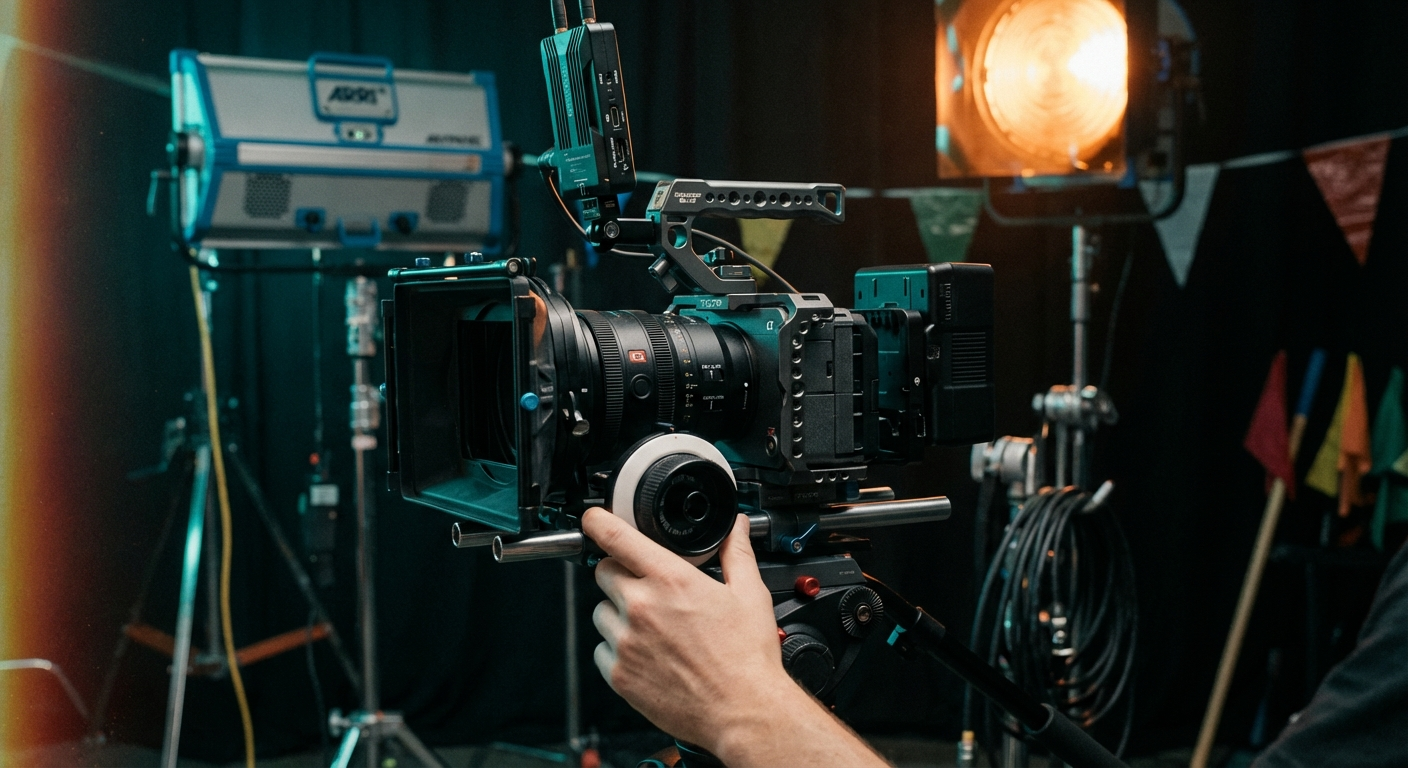
4. Store custom picture profiles and metadata
Leverage Canon’s Custom Picture profiles to preload your favorite LUTs, knee, and saturation settings. Name them after actual deliverables (“DocDay_PQ”, “EventFastTurn”). Saving presets to SD lets you redeploy the exact look onto backup bodies in minutes.
5. Assign buttons for cine-only shortcuts
The Cine OS exposes waveforms, false color, and AF-Assist, but diving through the touchscreen costs time. Bind WFM to the FUNC button, False Color to the joystick press, and Push AF to the lens control ring. Muscle memory beats menu diving every time.
6. Activate HDR monitoring when you need it
For jobs that master in HDR, flip the View Assist to PQ or HLG and feed a small HDR-capable monitor via HDMI. Seeing highlight roll-off live prevents reshoots and keeps color notes honest, especially when clients are reviewing on set.
7. Let Active Cooling work for you
In hot interiors or run-and-gun gigs, set the fan to Automatic (High) before call time. The camera reaches thermal equilibrium faster and won’t surprise you with a heat warning at the end of a perfect take. For audio-critical work, switch to Low between takes.
8. Shoot Canon RAW Light LT for fast conform
When you need grading latitude but can’t afford monster files, Canon RAW Light LT is the sweet spot. It’s about 2.6x lighter than RAW HQ, plays smoothly in Resolve/Premiere on modern laptops, and still preserves metadata for exposure tweaks in post.
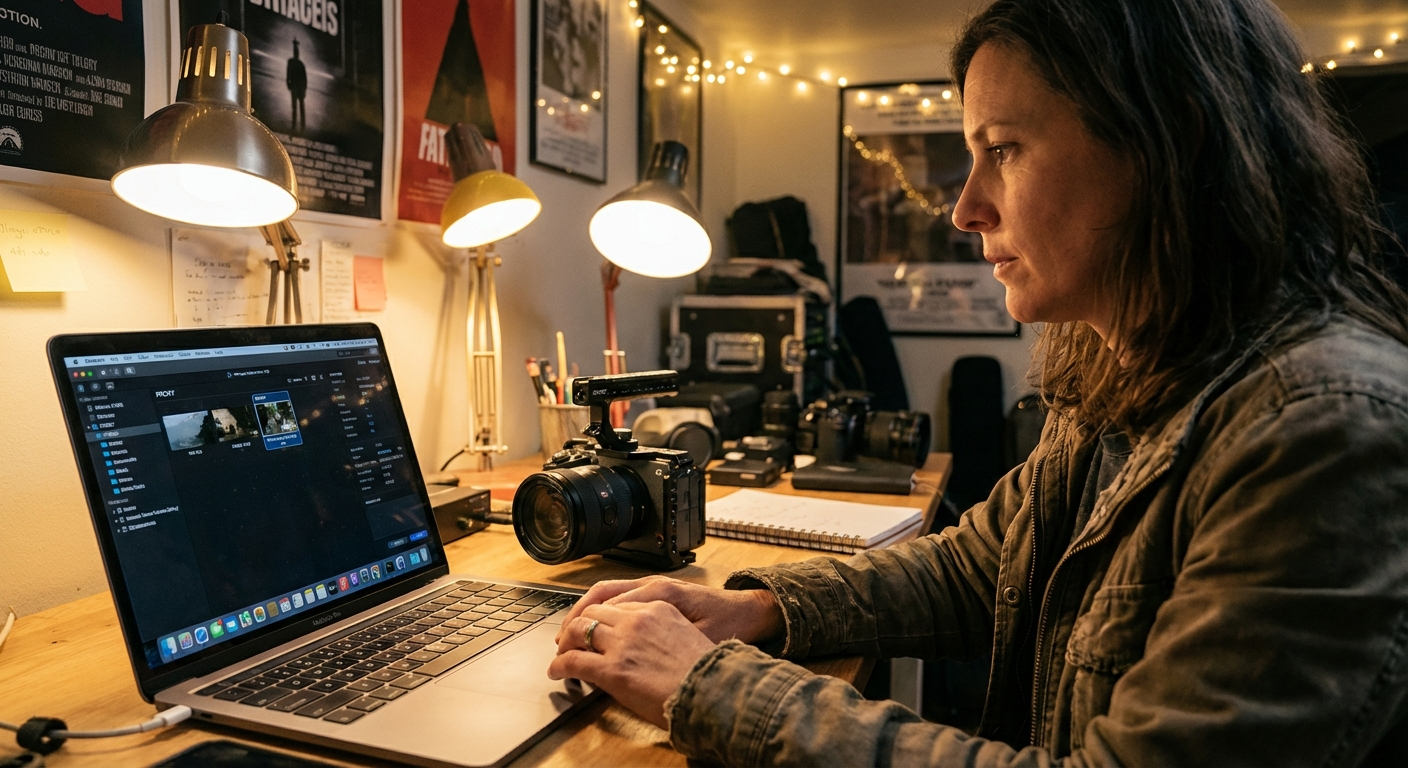
9. Power audio through the multi-function shoe
Pair the R5 C with Tascam’s XLR adapter or Canon’s DM-E1D mic via the multi-function shoe. You get powered audio accessories without extra cables, instant channel naming, and digital-to-digital transfer straight into the clip.
10. Use Canon Browser Remote for solo crews
Connect the camera’s 5GHz Wi-Fi to a tablet or laptop and launch Browser Remote. You can pull focus, start/stop, and drag exposure sliders while you’re standing in front of the lens. It’s a lifesaver for interviews and product shots when the crew count is “you.”
Watch it in action
Need a deeper dive—LUT packs, rigging diagrams, or BTS shot planning? Drop JP Filmz a line and we’ll share the extended toolkit we lean on when the R5 C is our A-cam.